


Introduction
Modern BI platforms are evolving rapidly, integrating capabilities that go beyond traditional analytics. Qlik Cloud Analytics, long recognized for its powerful in-memory associative engine, is no exception. While Qlik has expanded into data integration and AI-driven tools, its core analytics platform continues to innovate. One of the latest additions is the Write Table functionality, a feature that enables users to input and manage data directly within Qlik applications.
This insight explains what the Write Table is, how it works technically, why it matters in modern data architectures, and how organizations can leverage it effectively.
1. What is the Write Table
The Write Table is a frontend object in Qlik Cloud applications that allows users to add editable columns alongside existing data from the app’s data model. Users can input values, such as free text or predefined dropdown selections, into these columns during analysis. These inputs can later be integrated into the data model, enabling dynamic workflows and real-time decision-making.
2. How Does It Work
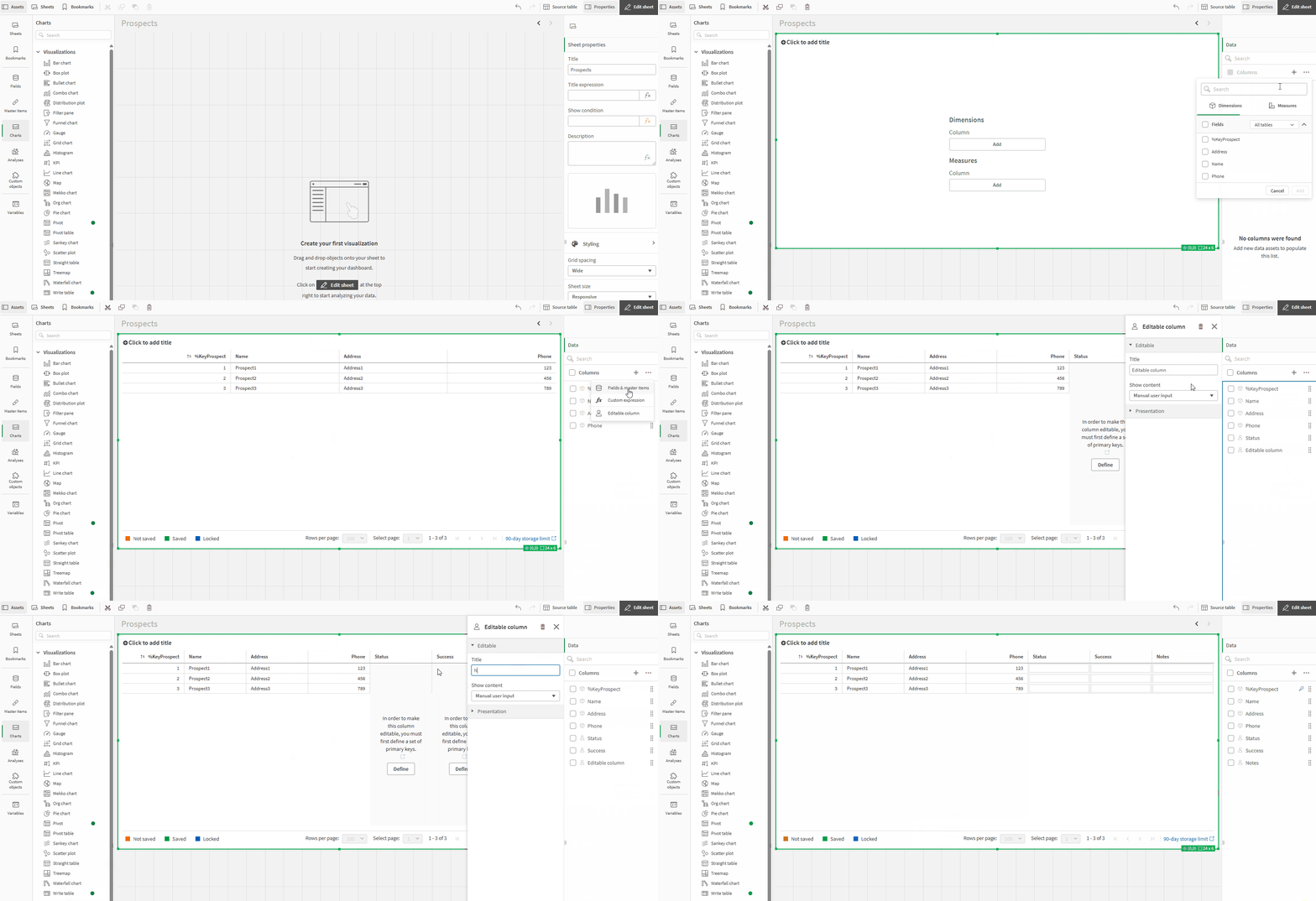
Adding a Write Table
- You start by adding a Write Table object to your Qlik app.
- Existing fields from the data model can be displayed in the table, but cannot be edited.
- Editable columns are added for user input (text or dropdown values).
Defining a Primary Key
- A primary key is required to link user edits back to the original data.
- This key can be a single field or a composite key spanning multiple fields.
- It ensures that changes in editable columns map correctly to the underlying records.
Data Storage and Retrieval
- User changes are not immediately applied to the data model.
- They are stored in a Qlik-managed change store for up to 90 days.
- To integrate these changes, developers can use the Change Store API via:
- Qlik Application Automation
- Data Load Editor with REST connector and API key
This approach allows for controlled, secure updates while maintaining flexibility. The image below shows how the data from the Change Store is added to the data model.

3. Why Use the Write Table
The Write Table accelerates workflows by enabling real-time updates during analysis. Instead of waiting for backend processes or app reloads, users can input changes directly, reducing turnaround time for dashboards and improving responsiveness to fast-changing business conditions.
4. Real-World Use Cases
Inventory Management
A retailer analyzing inventory in Qlik can quickly update reorder quantities or add notes when demand spikes. Automations can then generate purchase orders and notify teams, streamlining procurement.
Sales Prospecting
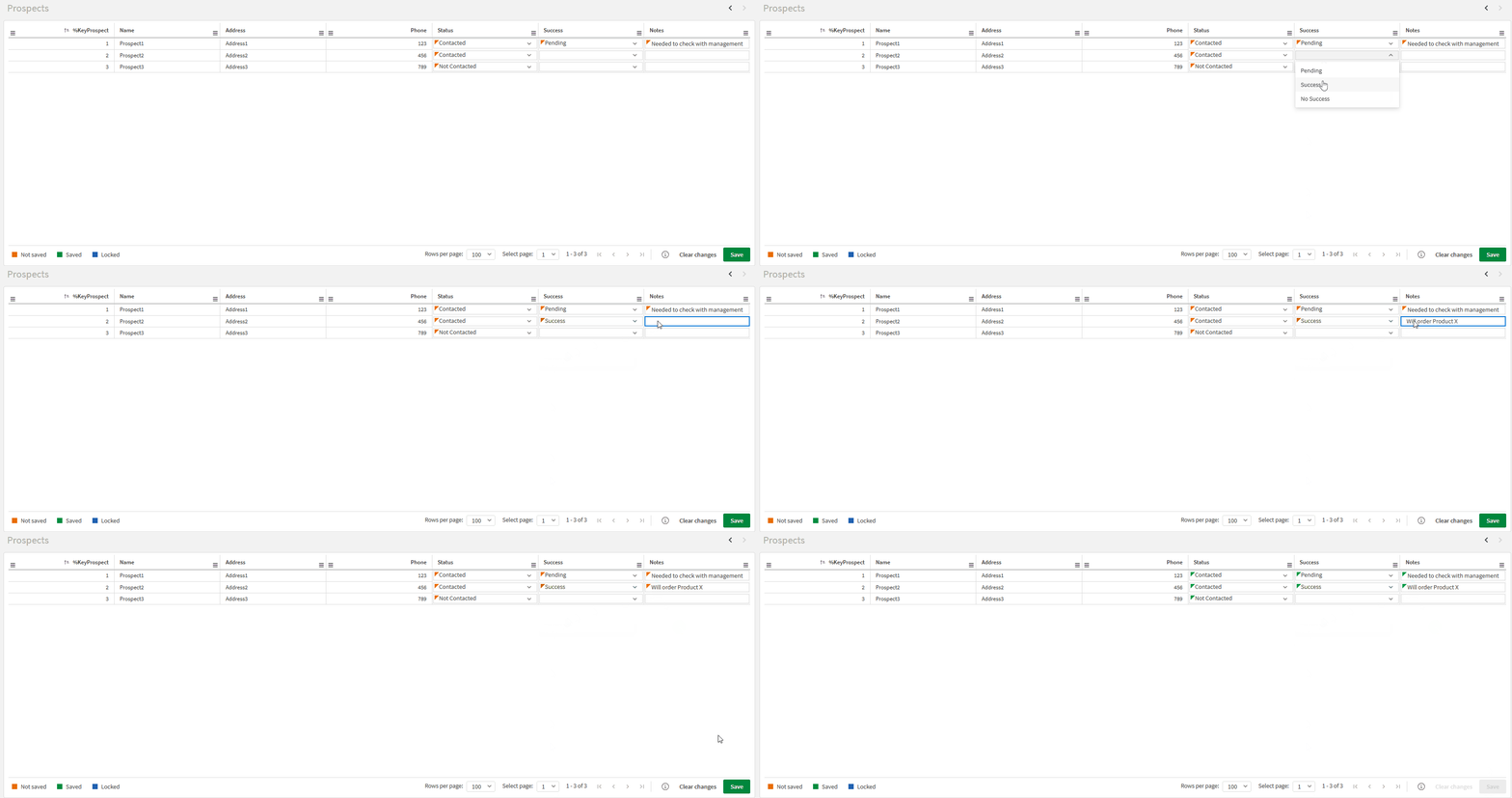
Sales reps working with ML-generated prospect lists can add interaction details (e.g., contacted status, success notes) directly in Qlik. These updates can feed back into the ML model for continuous improvement and analytics.
5. Advantages Over Custom Solutions
While custom writeback solutions exist, the native Write Table offers:
- Immediate visibility of changes in the app frontend
- Simpler architecture without complex automation chains
- Better user experience with direct table edits
- Lower maintenance overhead compared to bespoke implementations
6. Potential Improvements
As a new feature, enhancements are expected. Key areas for improvement include:
- Ability to edit existing data in the data model
- Automatic integration of changes into the model using primary keys
Conclusion
The Write Table marks a significant step forward for Qlik Cloud Analytics, bridging the gap between analysis and action. By enabling real-time data input and integration, it transforms Qlik from a purely analytical tool into an interactive decision-making platform. Organizations adopting this feature can expect faster workflows, improved collaboration, and a more agile analytics environment.
More detailed information and steps on how to set up a Write Table can be found on Qlik Help - Write Table