

Branding in Qlik Cloud: How to Make Your Qlik Cloud Tenant and Applications Truly Yours
Introduction
Branding matters, especially in the tools your teams use every day.
In Qlik Cloud, customizing your tenant and applications with your organization’s look and feel can boost trust and improve adoption. Making it easier and more intuitive for users to interact with their data.
In this Insight, we’ll walk you through the process of branding your Qlik Cloud tenant and applications, providing practical steps, best practices, and customization tips.
Branding your Tenant
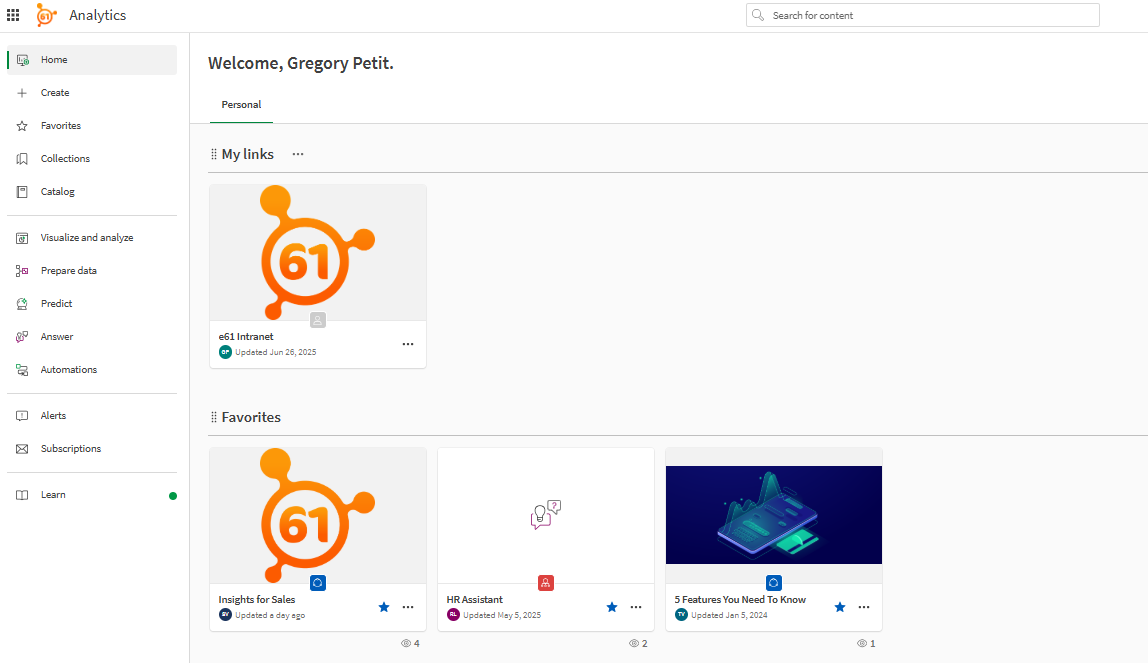
In Qlik Sense Cloud, your tenant acts as the central hub for all analytics activity, making it an important space to reflect your organization’s brand identity.
Through Qlik’s Brands API, you can replace default Qlik logos and browser favicons with your own corporate images. A favicon is a small icon that represents a website, typically displayed in the browser tab, bookmarks, and address bar.
This branding appears in key places such as the top navigation bar of the Qlik Cloud hub and browser tabs, helping to create a consistent identity that aligns with your company’s visual language.
More Info can be found here: Brand Qlik Cloud | Qlik Developer Portal
Branding your Qlik Sense Applications
While tenant-level branding helps create a cohesive environment, the true visual identity of your analytics comes to life within your individual Qlik Sense applications. Branding your applications allows you to tailor dashboards and reports to match your organization’s style guidelines, making data insights more approachable and reinforcing your corporate identity at the point of use.
From applying custom colour themes to embedding logos and adjusting fonts, there are multiple ways to ensure each application reflects your brand and provides a consistent, professional experience for users.

Make it yours: 5 smart ways to Brand Qlik Cloud Applications
1. Applying Default Themes and Styling
Beyond logos and favicons, tenant administrators can establish a consistent visual identity by setting preferred themes for applications and dashboards in Qlik Cloud. While detailed styling is often managed at the individual application level, defining default themes helps ensure a unified look and feel across your analytics environment. These themes typically incorporate your company’s colour palette, fonts, and design standards, making dashboards feel integrated with other corporate tools and reinforcing brand recognition.
Qlik Sense offers several built-in themes that can be easily applied for a professional appearance. For deeper customization, you can create your own themes by defining colours, fonts, and styles in a JSON file, optionally enhanced with CSS and images. Once uploaded to your Qlik Sense environment, these custom themes can be applied to individual applications, ensuring consistent branding that aligns with your organization’s visual identity.
What you can customize:
- Colour palettes (backgrounds, text, charts)
- Fonts and font sizes
- Margins, padding, and spacing
- Background images or logos
- Button and object styles
2. Branding with Custom Logos and Icons
You can personalize your Qlik Sense applications by adding your company’s logos directly into sheets using image objects. Additionally, customizing app thumbnails with brand colours and icons helps users quickly identify and differentiate applications, reinforcing your organization’s visual identity throughout the analytics experience.
3. Enhanced styling capabilities
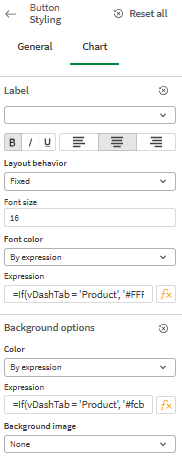
Qlik Sense Cloud offers enhanced styling capabilities for almost all visual objects like allowing developers to align app elements more closely with their brand identity.
For example, by selecting a button and navigating to the Presentation > Styling > Chart section, users can customize the font, background colour, and border, not only with fixed values but also using expressions.
This means you can dynamically apply colours based on variables or even user selections, enabling context-aware branding.
In other words, a button’s background can change to reflect a selected department’s colour scheme, or fonts can adapt to accessibility preferences.
4. UI Settings
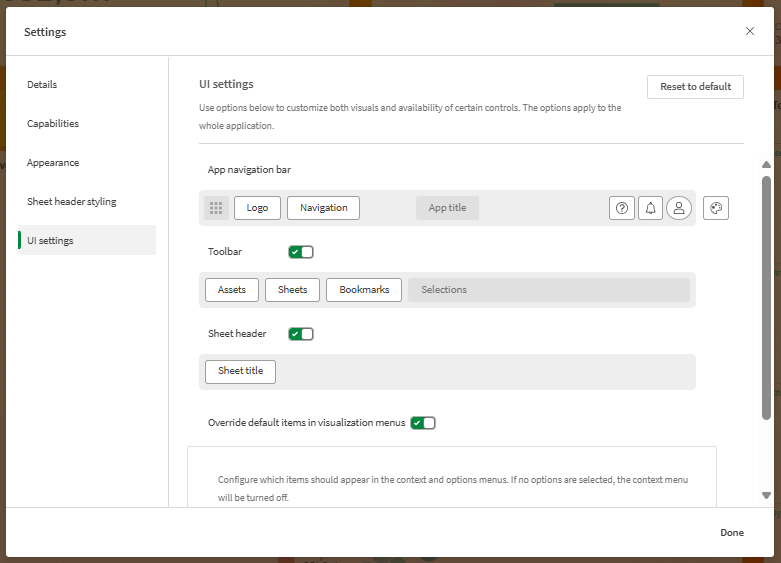
The latest UI settings in Qlik Sense Cloud offer enhanced flexibility for customizing the user experience within applications.
Through the UI Settings panel, developers can now toggle key interface elements such as the toolbar, sheet header, and sheet title, allowing for a cleaner, more brand-aligned layout.
The sheet header can include a custom logo or image, and when hidden, developers can replace it with branded navigation buttons or titles using text and image objects. Similarly, the toolbar can be simplified by selectively hiding elements like assets, bookmarks, or sheets, giving developers more control over the visual hierarchy.
These options not only free up space for analytics but also allow applications to reflect a company’s visual identity more closely.
5. Embedding
Embedded analytics with Qlik Cloud takes branding to the next level by seamlessly integrating Qlik’s data visualizations directly into your own digital environment. Whether it’s a corporate portal, intranet, or customer-facing application, embedding Qlik allows you to present analytics within your brand’s ecosystem, complete with your own colours, logos, and user experience. This not only reinforces brand identity but also creates a unified, intuitive experience for users, making data feel like a natural part of your platform rather than a separate tool.
Best Practices and Common Pitfalls in Branding
1. Best Practices
- Keep branding consistent across your tenant and individual applications.
- Use company-approved fonts, colours, and design standards.
2. Common Pitfalls
- Misconfigured themes causing UI layout or display issues.
- Over-customizing applications can complicate maintenance and reduce visibility, making them harder to manage and understand

Conclusion
Effective branding in Qlik Cloud, from tenant-level identity to the look and feel of individual applications, plays a crucial role in driving user engagement, trust, and adoption. By thoughtfully applying your organization’s visual standards and following best practices, you create a seamless analytics experience that feels both professional and familiar. While Qlik offers powerful tools to support branding, achieving the best results often requires a blend of technical expertise and design insight.
At element61, we specialize not only in the technical aspects of Qlik implementation but also in delivering tailored visualization workshops. Our goal is to empower your teams with both the knowledge and design skills needed to build compelling, branded dashboards that truly resonate with your users. If you’re looking for guidance or hands-on support to elevate your Qlik environment, we’re here to help.