


TL;DR
FCA is a community-built cost intelligence layer for Microsoft Fabric that transforms raw Azure billing data into a clear, actionable model that shows exactly where your compute, storage, and PAYG costs come from.
Intro
Ever opened your Microsoft Fabric bill and wondered where the costs actually came from? As Fabric adoption grows, understanding and explaining platform spend becomes increasingly challenging. This is where Fabric Cost Analysis (FCA) adds value, delivering transparency by breaking down costs into clear, actionable insights!
What is FCA
FCA is an open-source solution accelerator, not an official Microsoft product, designed to bring clarity and control to your Fabric costs. In essence, this solution simply translates your Azure Cost Management data into easy-to-use reports. This allows you to immediately grasp your biggest cost drivers while also providing detailed insights to dig deeper and actually understand what you're paying for. FCA serves as a cost intelligence layer that integrates financial and operational signals from across the Fabric ecosystem, running entirely on Microsoft Fabric.
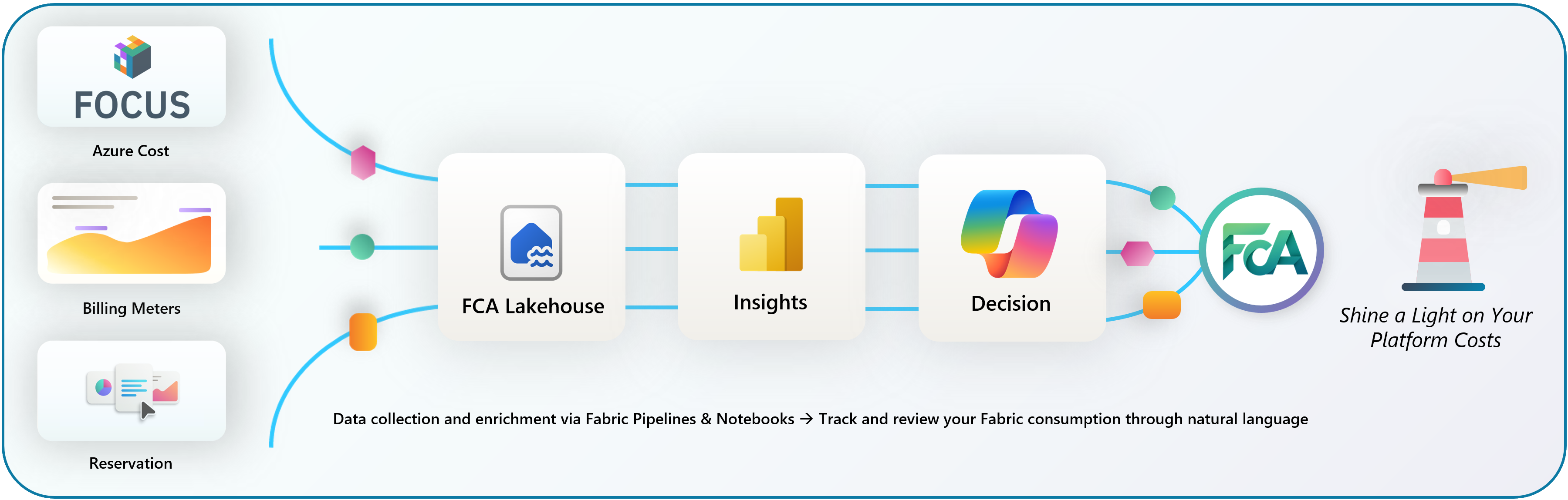
High-level Fabric Cost Analysis Overview
FCA provides transparency and allows you to answer simple, but essential questions:
- What are we actually paying for?
- Where are optimization opportunities?
- Are reserved capacities delivering value?
- How do we explain spending to stakeholders?
What does it cover
FCA consolidates financial and operational signals from your Fabric ecosystem from billing exports obtained through Azure Cost Management. It in turn translates this into an end-to-end view on Microsoft Fabric costs by combining billing, capacity usage and operational metadata into a single analytical model. Concretely, it covers:
- A clear breakdown between core cost components:
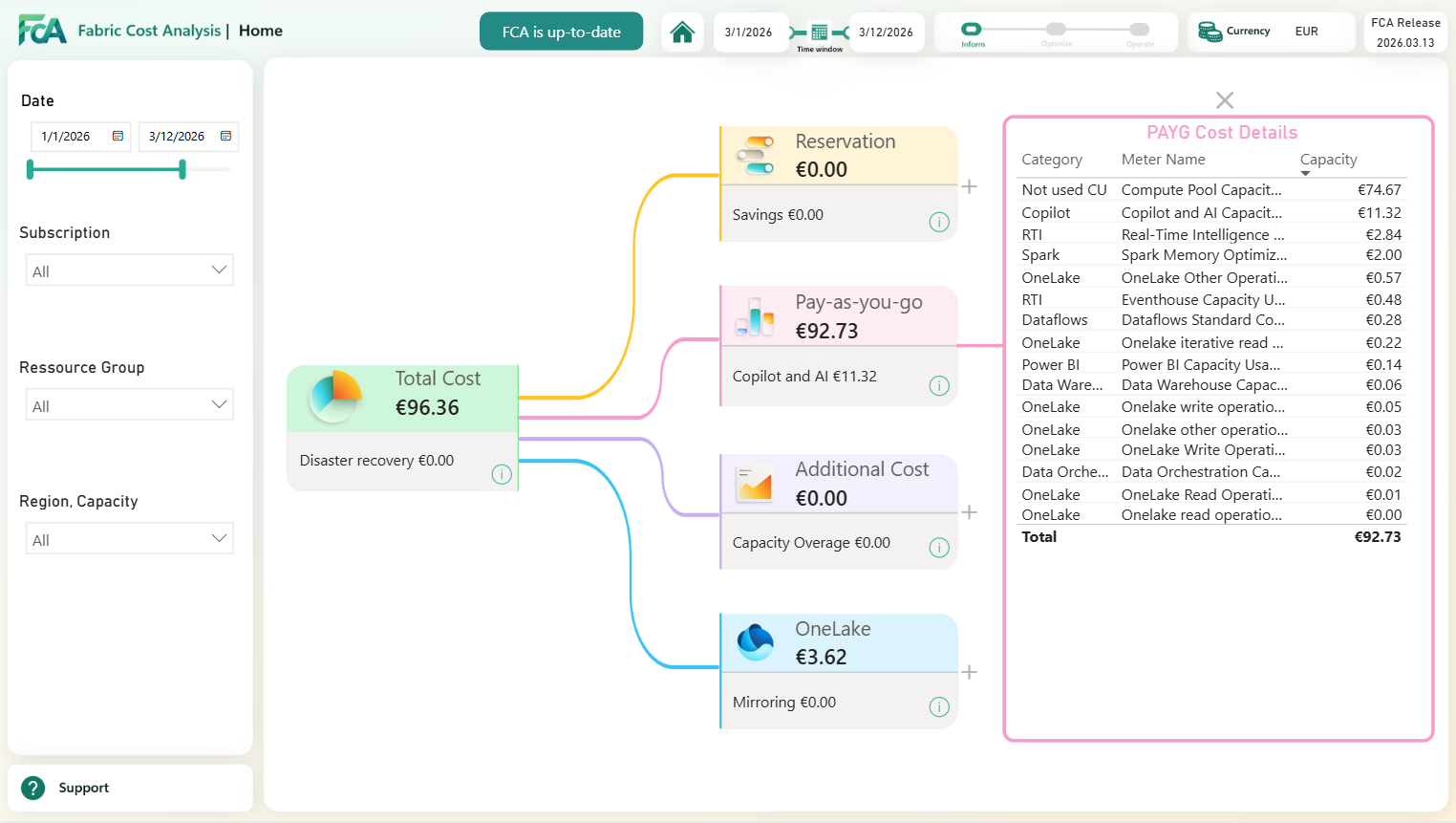
FCA Home Page
- Compute: Compute costs consist on one side of your reserved capacities. FCA not only shows the absolute reservation cost, but also highlights realised savings compared to pay-as-you-go pricing, making the financial impact of reservations explicit. On the other hand, you have your PAYG costs which capture variable compute usage that exceeds reserved capacity or runs entirely on consumption-based pricing.
- Storage-related costs: OneLake costs represent the storage layer of Microsoft Fabric. FCA isolates these costs explicitly from compute costs, making it very easy to understand what you're actually paying for.
- Additional costs: Next to compute and storage, some additional charges may occur. For example, pause-related costs. A common misconception is that pausing capacity immediately stops all costs. This is not entirely true as certain background services may still continue generating costs. FCA makes remaining charges visible so you understand exactly why costs don’t drop to zero.
- Detailed insights: Besides these major cost components, FCA allows you to dig deeper and discover how different subscriptions, resource groups, regions and Fabric workloads (such as Power BI, Copilot, Data Warehousing, and more) contribute to overall spend. FCA not only highlights where costs originate but also reveals how they evolve over time, helping you to detect anomalies and optimization opportunities early.
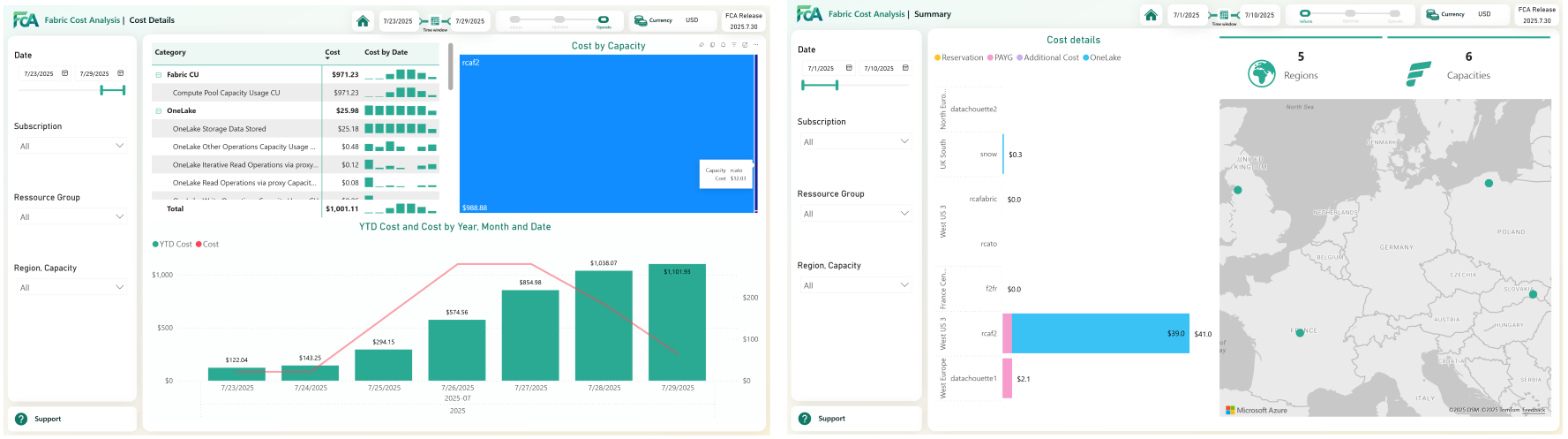
CA Cost Details Page - FCA Summary Page
- Capacity usage and efficiency: One of the most difficult design choices for Microsoft fabric is which capacity to choose. FCA can help make the right decision by showing whether you're over-or underutilizing your capacity. FCA tells you exactly how much your current capacity is used and helps you easily identify which subscriptions, resource groups and workloads are driving these costs.
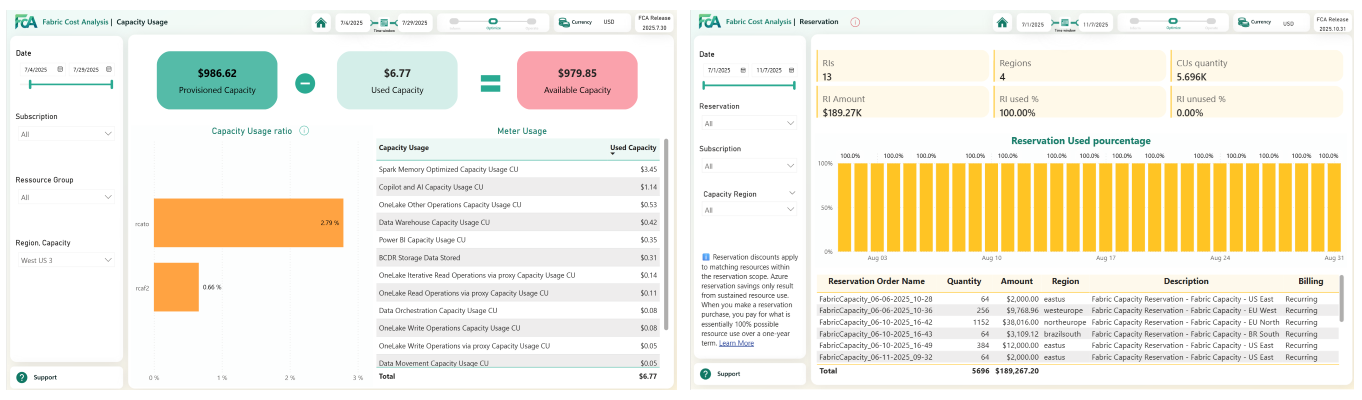
FCA Capacity Usage Page - FCA Reservation Page
- Azure quotas: FCA offers additional insights in Azure Quota usage per subscription.
- Integration with Fabric Data Agent: Optionally, the creators of FCA made it possible to build a Fabric Data Agent on top of the semantic model to allow users to interact with your cost data in natural language. This makes it even easier to understand costs on Microsoft Fabric!
How to set it up
The FCA solution is fairly easy to set up. After configuring a few components yourself, The FCA solution accelerator takes care of the rest through a series of pipelines, notebooks and Lakehouse tables. A more detailed explanation by the developers themselves can be found here (accompanied by all necessary notebooks): fabric-toolbox/monitoring/fabric-cost-analysis/Deploy.md at main · microsoft/fabric-toolbox
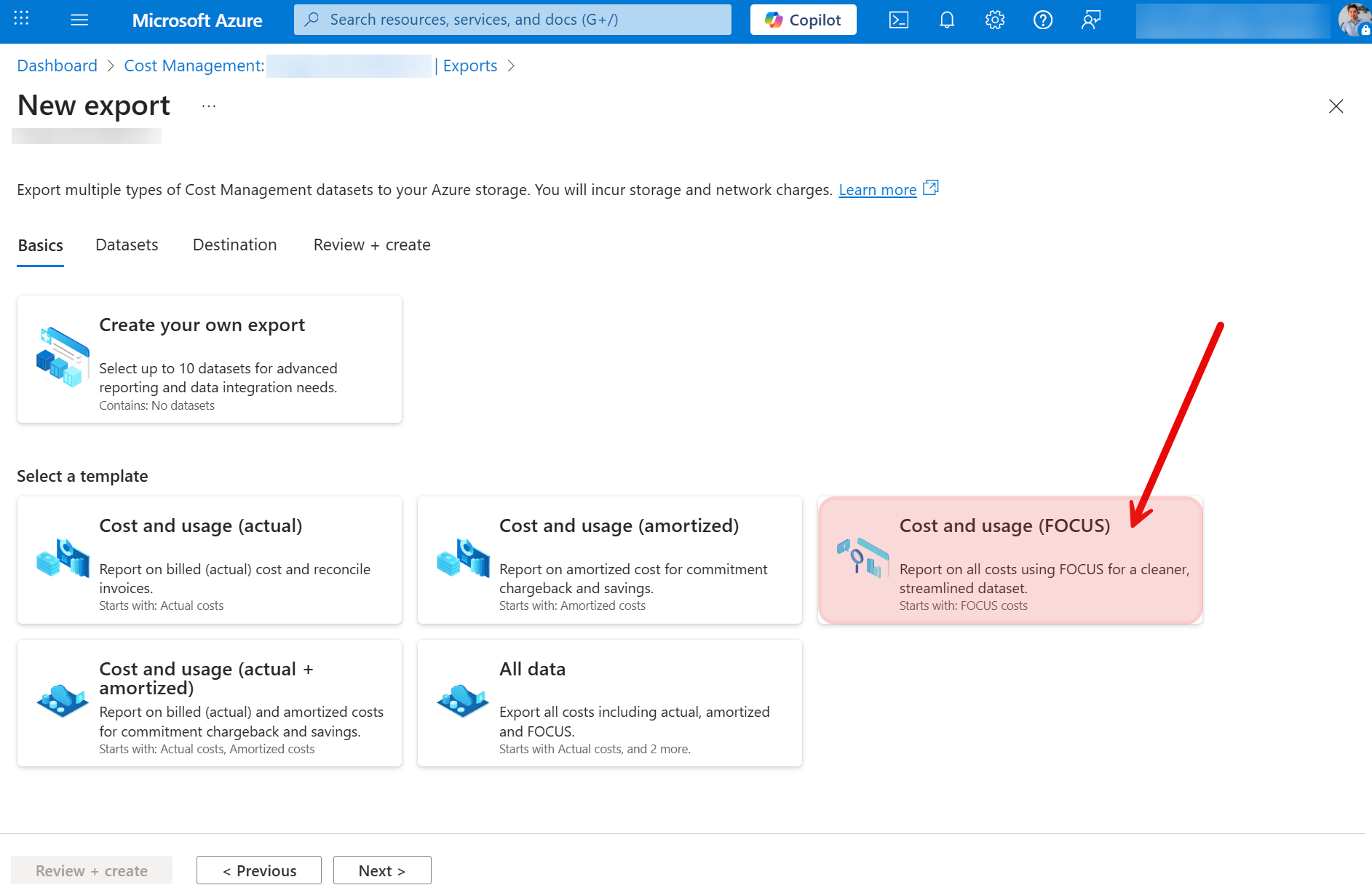
- First, configure an export of your own Azure Cost Management data in FOCUS format. This is an open-source format for FinOps data. Make sure to set up a schedule (either monthly or daily) for an automated export next time. For the export, you will need a Cost Management Contributor Role as well as a Data Lake Gen 2 Storage account.
Image

Azure Cost Management Export
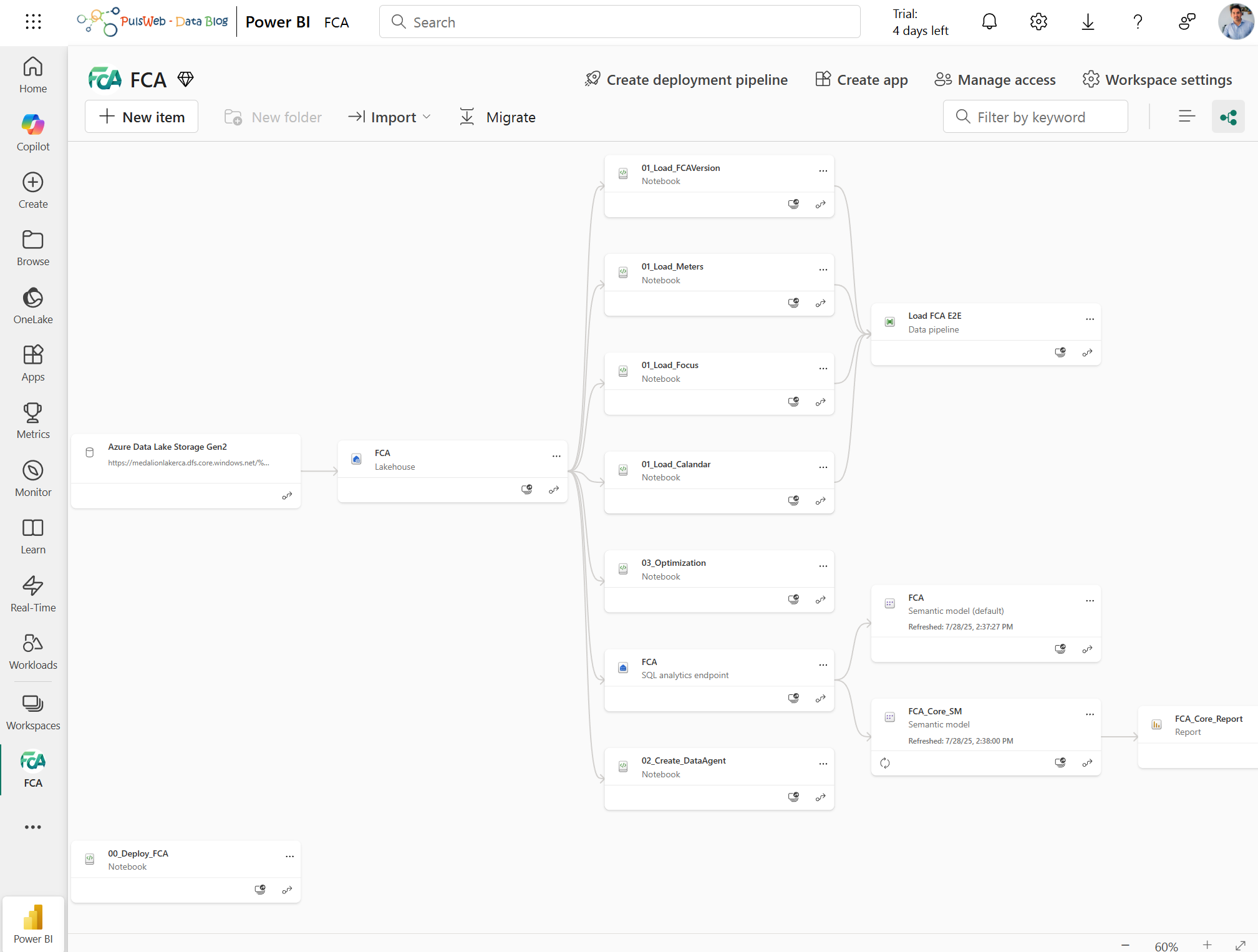
- Next, you provision a dedicated Fabric workspace and run the deployment notebook, which creates all required lakehouse structures, notebooks, pipelines, and the semantic model in the correct order.
Image

FCA Deployment Notebook
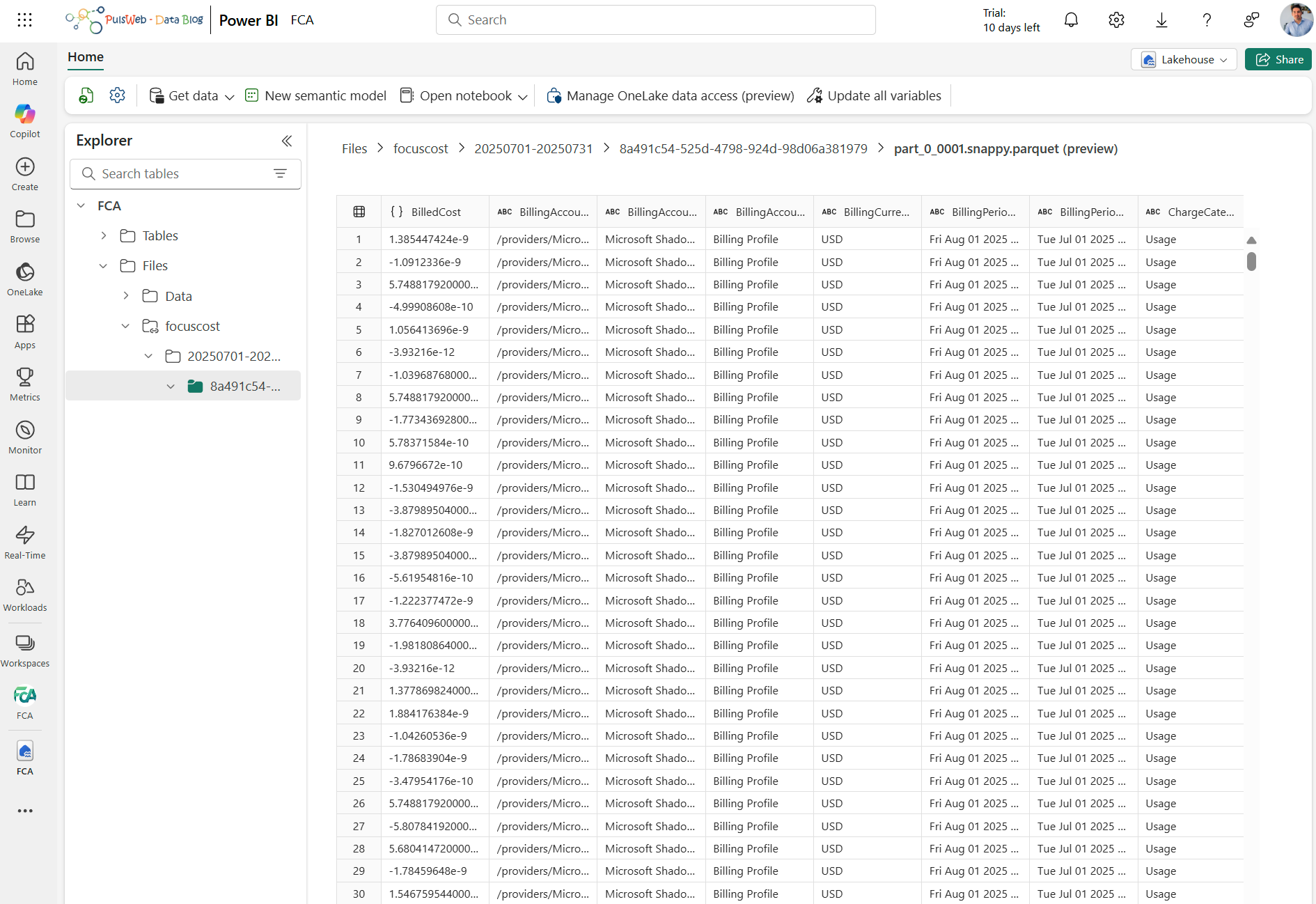
- On your newly created FCA Lakehouse, configure a shortcut to the FOCUS export in your Azure Data Lake Storage Gen 2.
Image

Lakehouse Shortcut
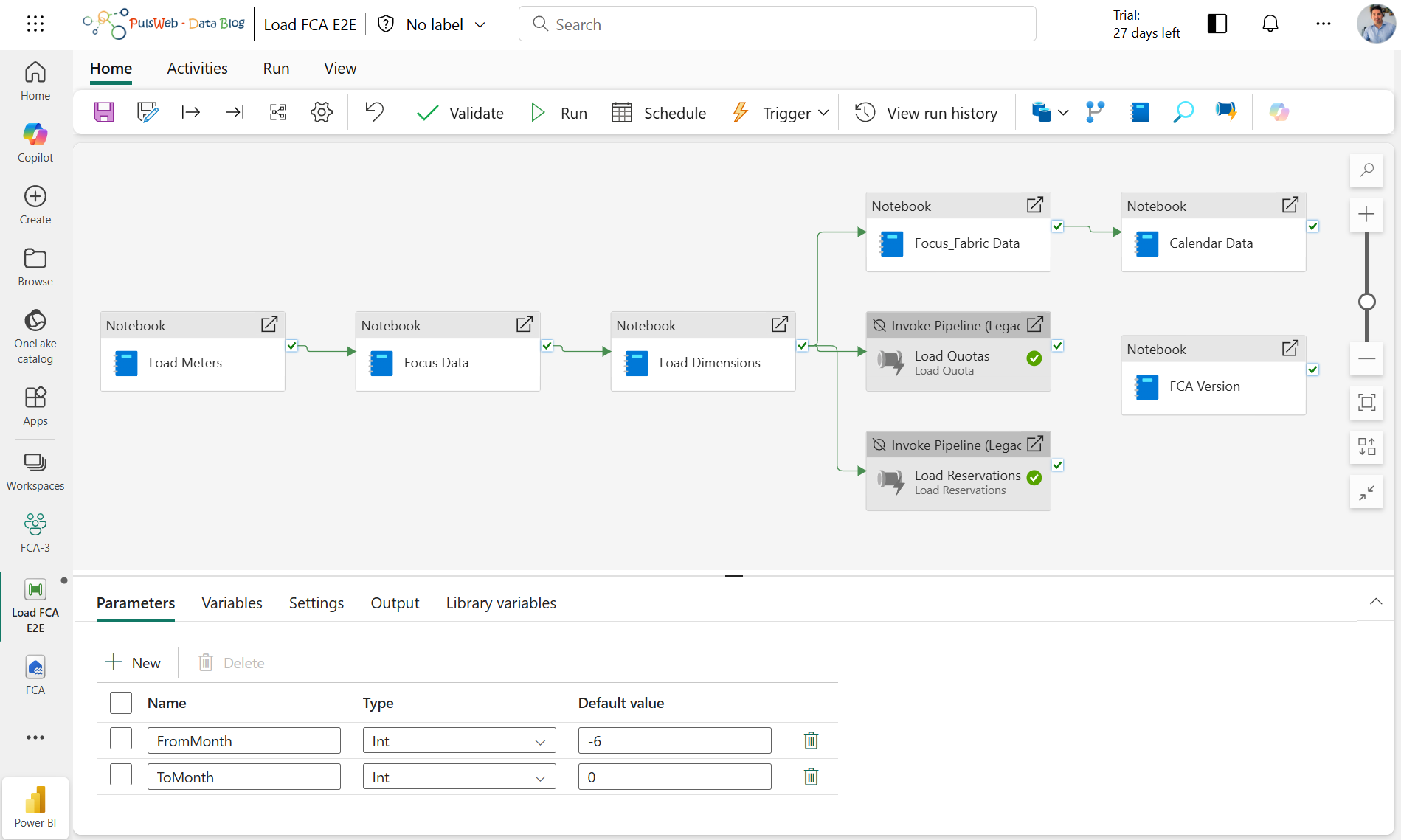
- Finally, you schedule the Load FCA E2E pipeline to orchestrate the ongoing ingestion and transformation of cost data, keeping the model and reports continuously refreshed.

After doing this basic set-up, you get a nice report that looks as follows:Image
- If you want to optionally configure a Fabric Data Agent on top of the semantic model, simply run the 02_Create_DataAgent Notebook
Source pictures: fabric-toolbox/monitoring/fabric-cost-analysis at main · microsoft/fabric-toolbox